How to read AO3 offline and keep your EPUBs updating automatically
AO3 lets you download stories as ebooks that you can read on your phone, tablet or computer.
You might be an expert looking for some tips on better organising your library, or entirely new to the e-reading world. Which format should you choose, what should you read it in, and what happens when an unfinished story gains new chapters? This guide covers all of that and how to stop a growing collection of downloads becoming a folder full of outdated files you’re too overwhelmed to search through.
How to download a story from AO3
AO3’s part is simple. The Download control lives on the individual work page and downloads the story with a click. If a work is restricted, you must be signed in before you can access and download it.
Open the work
From an AO3 listing, select the story’s title to open its main page.
Choose Download
AO3 opens a small menu of available formats.
Pick a format
If you are unsure, choose EPUB. Your browser saves the file to Downloads or Files.
The file contains every chapter posted at the time you download it. AO3’s Downloading Fanworks FAQ confirms the available formats and explains AO3’s download limits.
Which format should you choose?
Choose EPUB unless you already know you need something else. It is the most convenient format for reading a text-heavy story on different screen sizes, because an ebook app can reflow the text and let you change its size, typeface, spacing and theme.
- EPUB
- The best default for phones, tablets, computers and most dedicated ebook readers. The text adapts to your screen and reading preferences.
- Keeps a fixed page layout. That can be useful for printing, but it is usually less comfortable on a small screen because the text does not reshape itself around your settings.
- HTML
- Saves the story as a webpage that you can open in a browser without returning to AO3. It is useful when you do not want to use an ebook app.
- AZW3 / MOBI
- Device-specific alternatives. Choose one only when a particular reader or existing workflow calls for it.
Which app should you use to read it?
You do not need a special AO3 app. There are many good EPUB readers, but these are sensible starting points for the devices most people already use.
- iPhone, iPad or Mac: Apple Books
- The simplest built-in option. Find the EPUB in Files or Downloads. Apple’s EPUB instructions can help if you’re stuck.
- Android: Google Play Books
- A straightforward choice if you want the EPUB, bookmarks and notes available on devices signed in to your Google account. Open the downloaded file with Play Books or upload it from Files; Google documents the steps in its Play Books help.
- Windows, macOS or Linux: Calibre
- A good free desktop choice when you want both an ebook viewer and a library manager. Calibre can read, catalogue and convert ebooks, and its official manual covers all three desktop platforms.
- Kindle: Send to Kindle
- Download EPUB from AO3, then send the file to your Kindle library. Amazon currently lists EPUB as a supported Send to Kindle format, so owning a Kindle does not mean you have to choose MOBI on AO3.
There are lots of good reader apps out there, so if you already have an EPUB reader whose controls and typography you like, keep using it.
What happens when an unfinished story updates?
The EPUB is a snapshot of the work at the moment you download it. It does not automatically gain later chapters on its own.
When a story updates, you return to AO3 and download it again.
An ordinary ebook app may import that replacement as a second book or make you remove the older copy yourself. It will also lose your place in the story. That is manageable for one or two works, but becomes more awkward when you follow several unfinished stories at once.
How to organise a growing offline library
If you download only an occasional story, put the files in one folder and keep using the reading app you already know. The problem changes when you have hundreds of downloads and want to find specific stories easily.
How to use Trace Reader
Choose one folder for AO3 EPUBs
Use a folder in Files or a cloud location available on your device. Put new AO3 downloads there instead of scattering them between Downloads, messages and temporary share sheets.
Add that folder to Trace Reader
When you return to the app, Reader checks the folders you selected and automatically adds new AO3 EPUBs that arrive.
Redownload WIPs into the same folder
Reader recognises the same AO3 work, updates its EPUB without creating a second library entry, preserves your notes and place, and keeps the previous file available in version history.
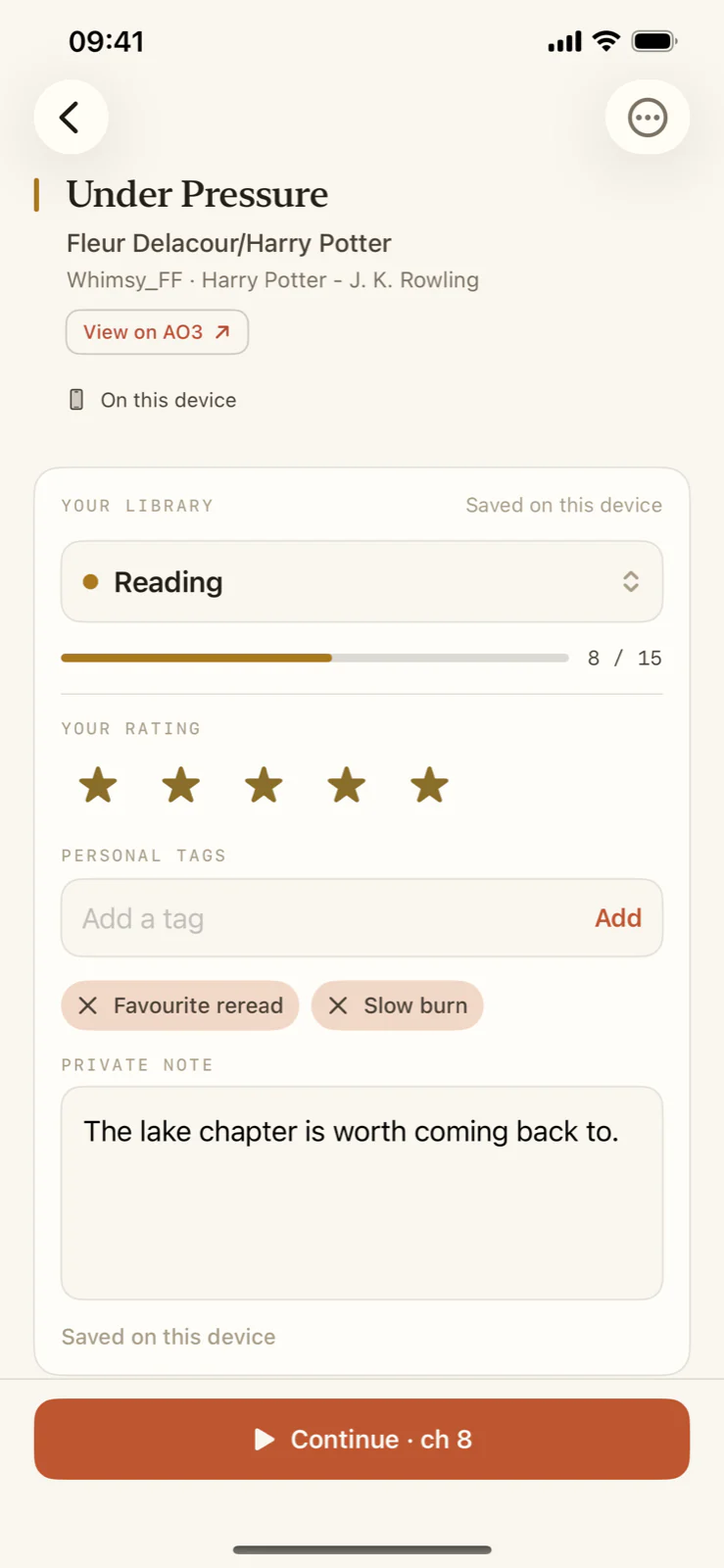
Add the details that help you remember
Status, progress, rating, personal tags and a private note live beside the EPUB.
Trace Reader works without an account. EPUB files and story text stay on the device. Connecting a Trace library through a free account is an optional way to bring browser and offline reading together.
Common AO3 download questions
Can I download only one AO3 chapter?
No. AO3 says a download contains all chapters available at the time. Individual chapters cannot be downloaded separately.
Does an AO3 EPUB update automatically?
No. Download the work again after new chapters are posted. Some reading apps treat that as a new file; Trace Reader can recognise an updated copy of the same AO3 work.
Will images, audio and video work offline?
AO3 says embedded audio and video are not kept in downloads, while images have documented limitations. If a story depends on media, check the offline copy while you still have a connection.
Do I need to give a reader my AO3 password?
No. Download the EPUB from AO3 yourself, then open the file in the reader. Trace Reader never asks for your AO3 login and you should be wary of trusting one that does.